A project folder often holds Markdown, Word, Excel, PowerPoint and PDF files side by side. Opening each one in a different app is tiring.
EasyView_Md brings these documents into one workspace. Edit Markdown visually, edit and save Word and Excel files, and preview PowerPoint, PDF and other supported formats in tabs. It is free and open source, with a desktop app for macOS and Windows and an extension for VS Code / Cursor.
It is useful when you write project notes, maintain technical documentation, or work with a folder of mixed documents and want to keep them close to your writing.
Choose your version
| Version | When to use it |
|---|---|
| Desktop app for macOS or Windows | Use a standalone document workspace with a folder tree, document tabs, a terminal and Git tools. |
| VS Code / Cursor extension | Add visual Markdown editing and file previews to the editor where you already work. |
The interface is currently in Simplified Chinese. Both versions share the Markdown editor, while their surrounding workspace controls follow the host application.
Get started
- Download the desktop app from the official website, or install EasyView_Md from the VS Code Marketplace.
- Open your project folder in the desktop app or in VS Code / Cursor.
- Open or create a Markdown file. In VS Code / Cursor, use Reopen Editor With… → EasyView_Md to select the visual editor.
- Start writing, type
/on an empty line to insert a block, and save your file. Switch to source mode whenever you want to edit the Markdown directly. - To use AI, open the AI panel settings and configure your provider’s API key, base URL and model. AI setup is optional for local document editing.
Core features
1. Visual Markdown editing
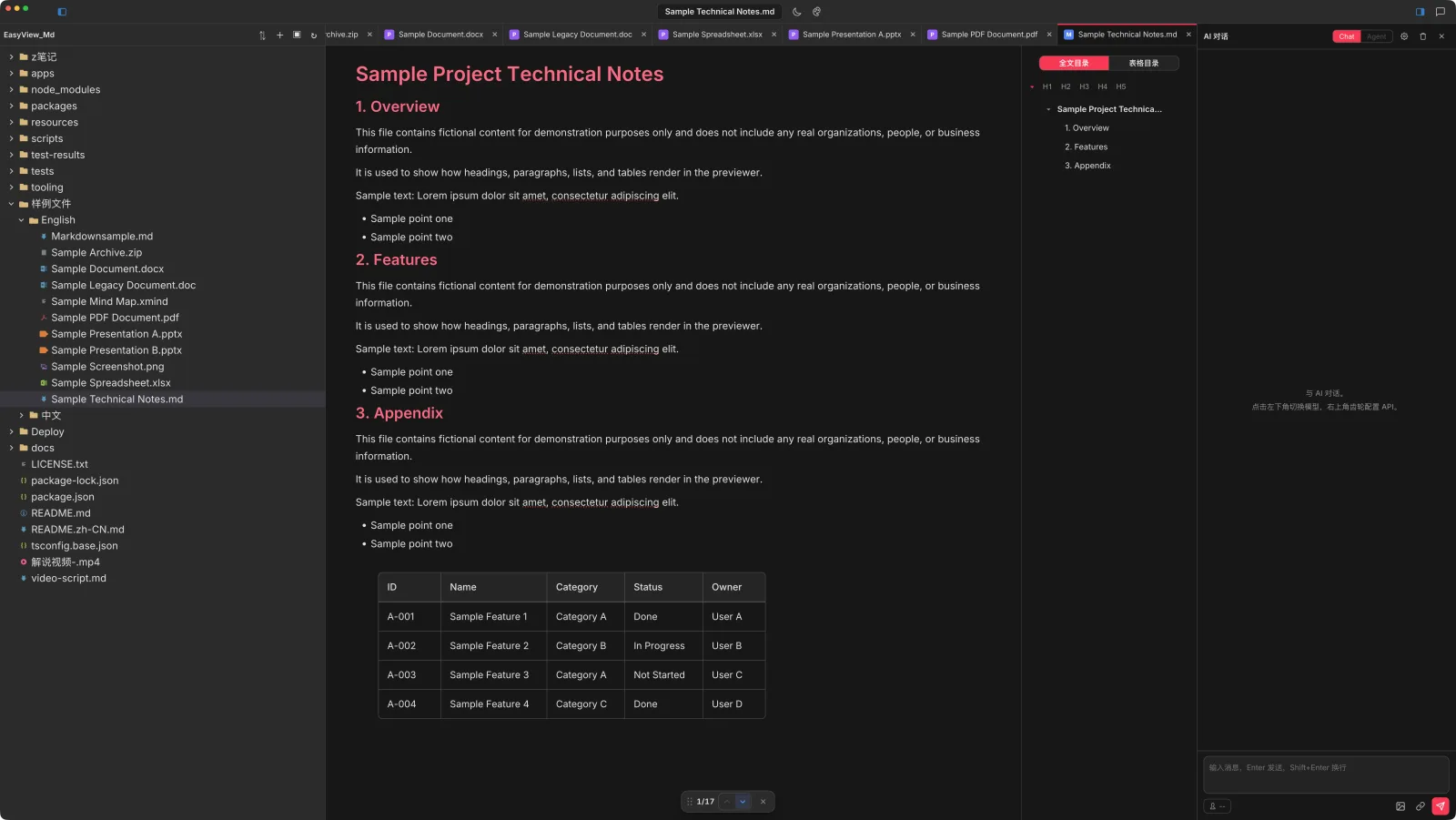
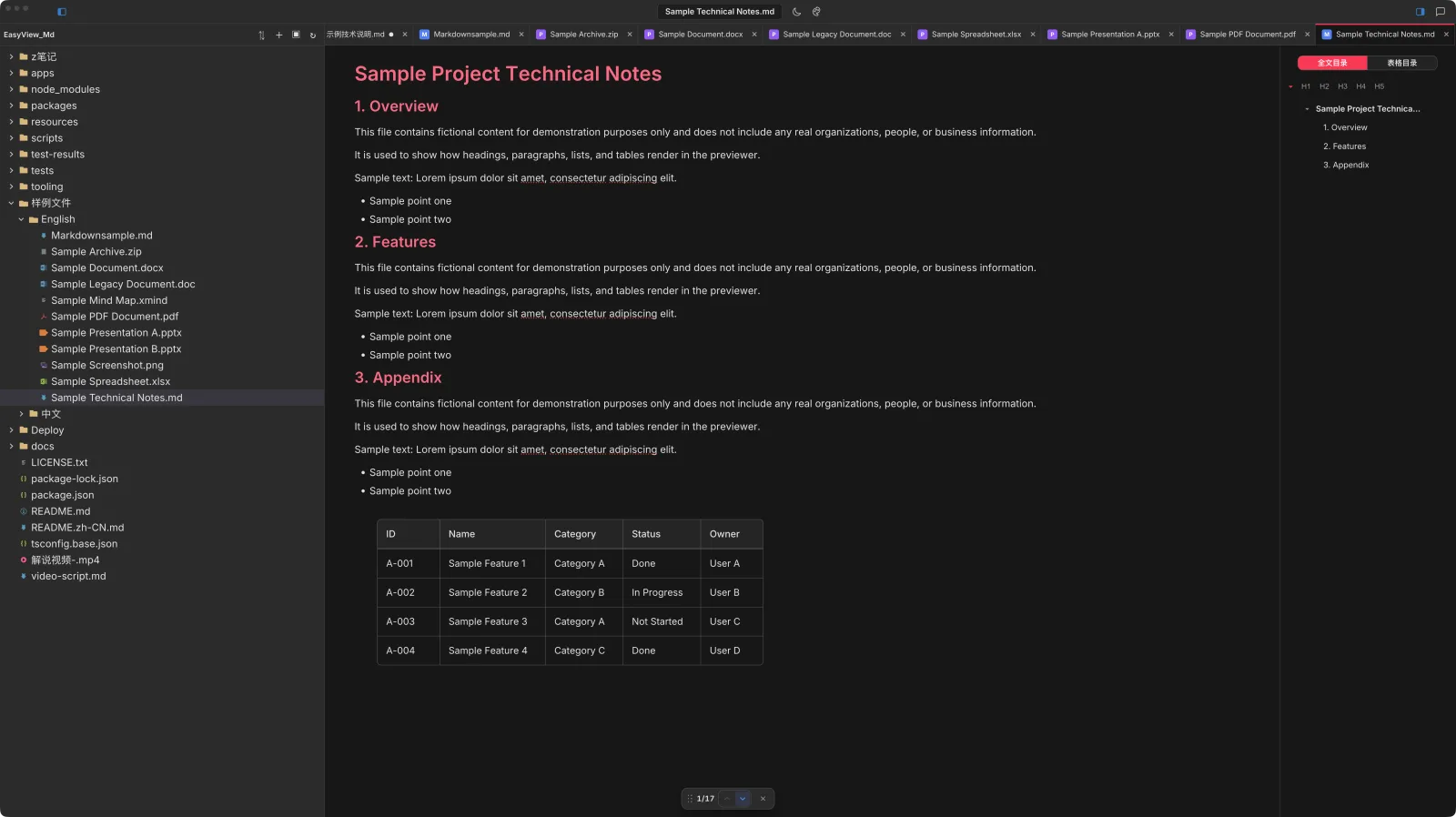
Write Markdown like a normal document, without memorizing syntax. Your work stays in Markdown files that you can open in other editors. Complex tables, such as those with merged cells, can include embedded HTML and table layout metadata; their appearance may differ in other Markdown viewers.
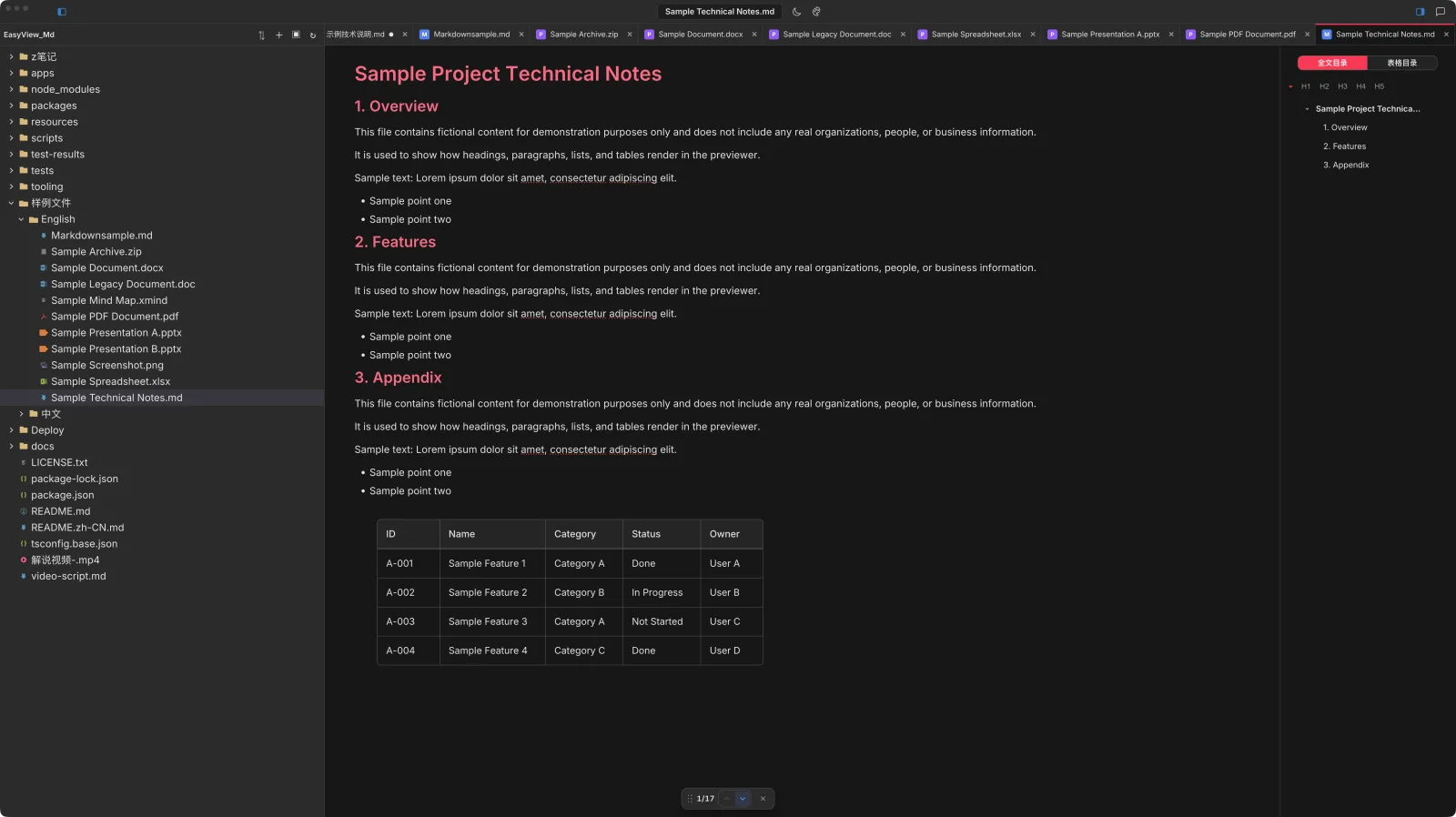
- Tables: add or delete rows and columns, merge and split cells, sort, resize columns, and export a table to Excel (.xlsx), including merged cells and row and column sizing.
- Diagrams and math: Mermaid renders locally. PlantUML, Graphviz, D2 and BPMN are also supported and are rendered online. Math uses KaTeX.
- Quick insert: type
/on an empty line to insert headings, tables, code blocks, callouts and more. - Outline: the outline panel folds by heading level. Drag a heading to move its whole section.
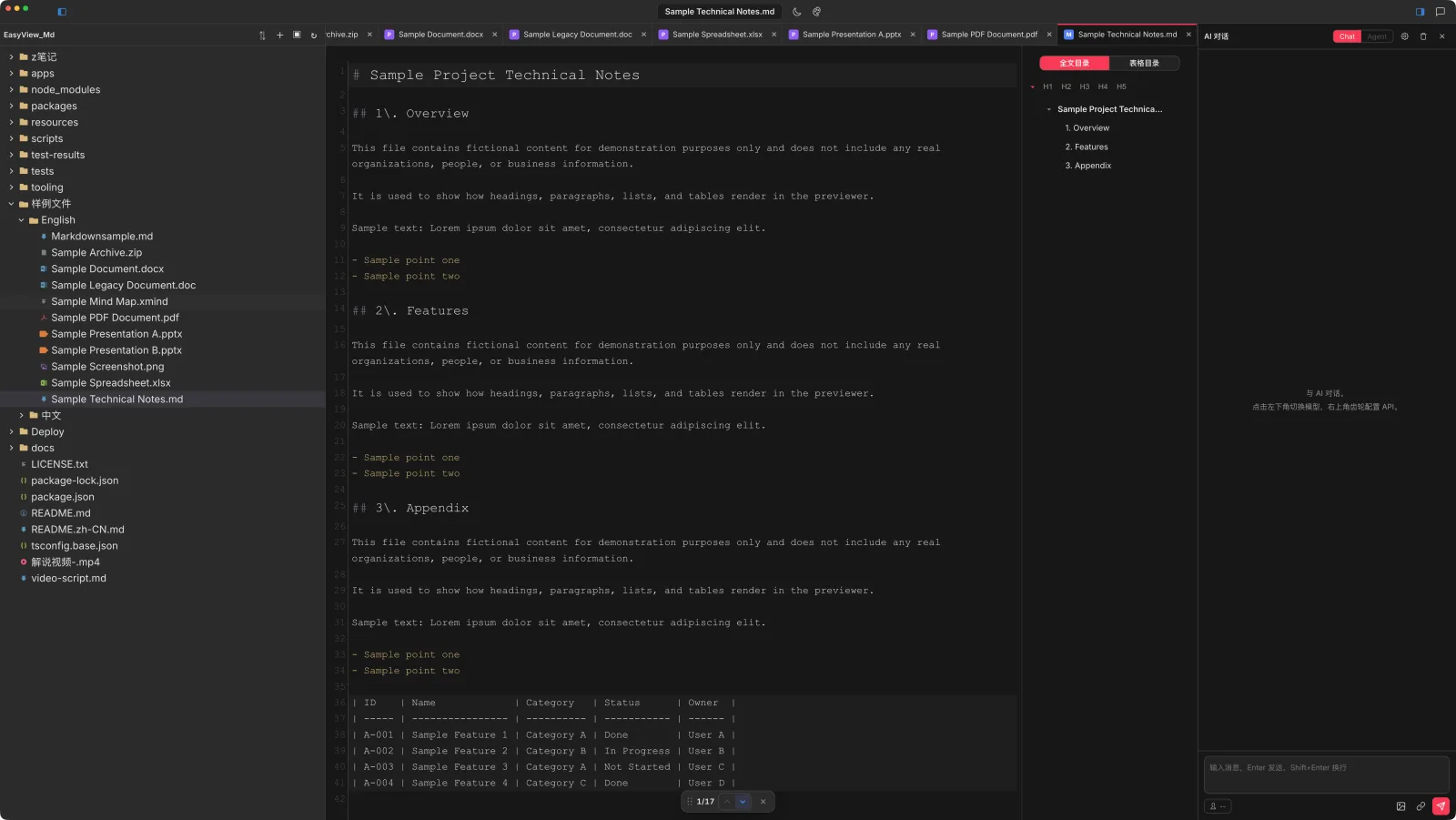
- Source mode: switch to raw Markdown with one click.
- Images: paste from the clipboard, drag in a local image, or insert one using the file picker. Local image assets can be stored beside the document and referenced with relative paths, making them easier to keep with your project.
2. Open a folder, and edit Word and Excel too
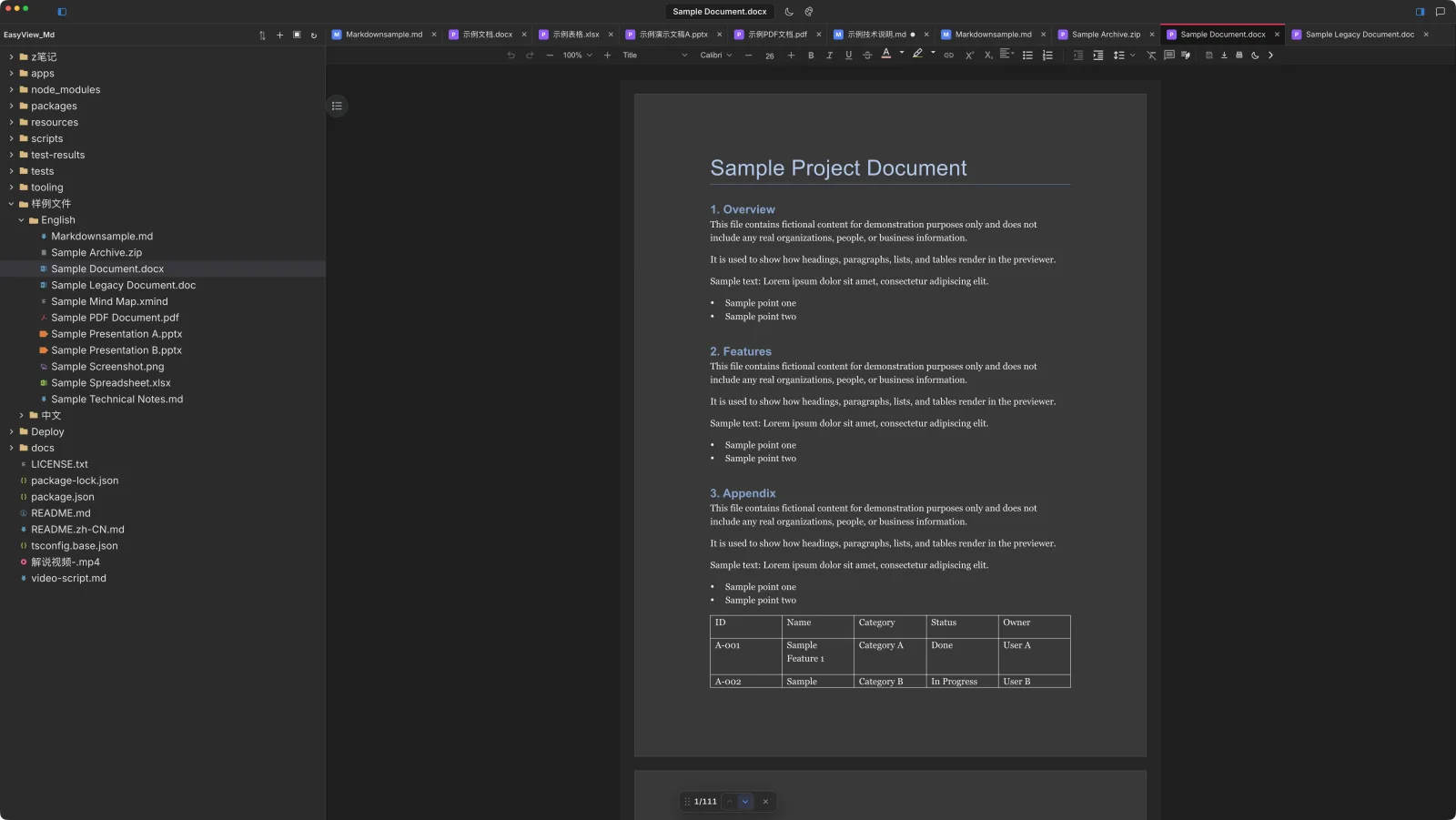
The workspace folder tree keeps your documents together. You can create, rename and drag files, and external changes refresh automatically. In the desktop app, files open in tabs and open files and layout are restored on the next launch.
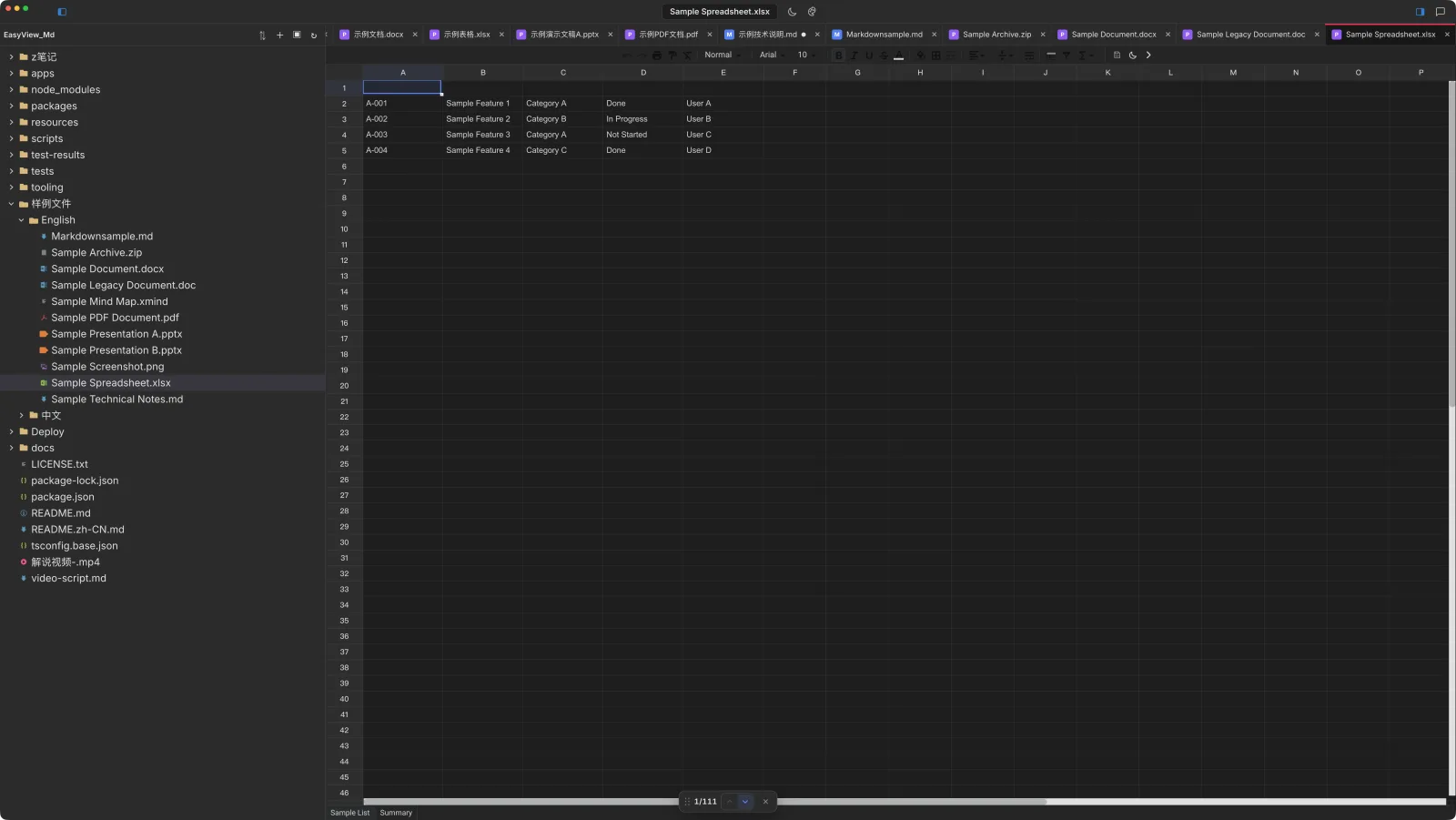
Word (.docx) and Excel (.xlsx) files can be edited and saved right in their tabs, without opening Office.
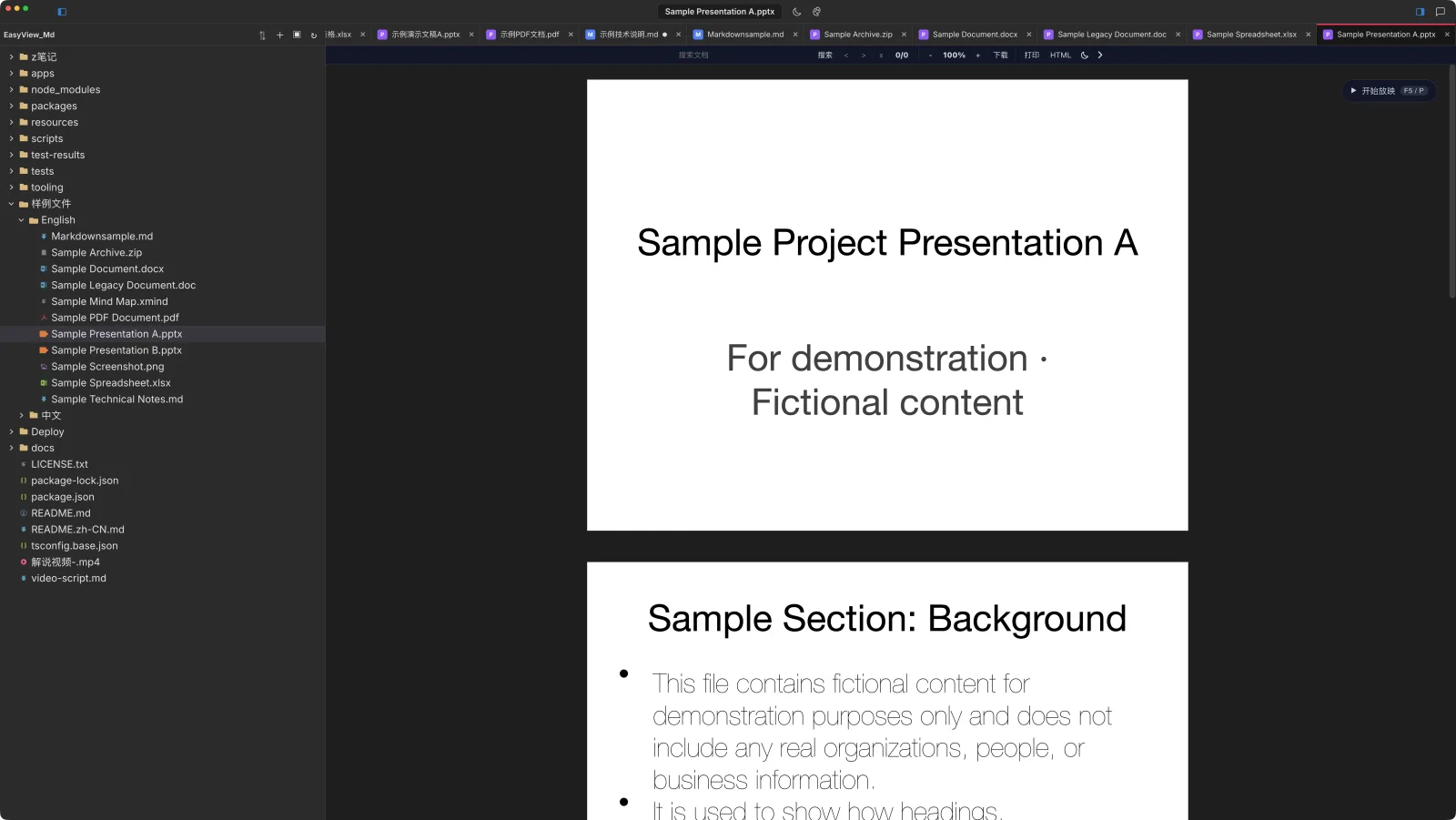
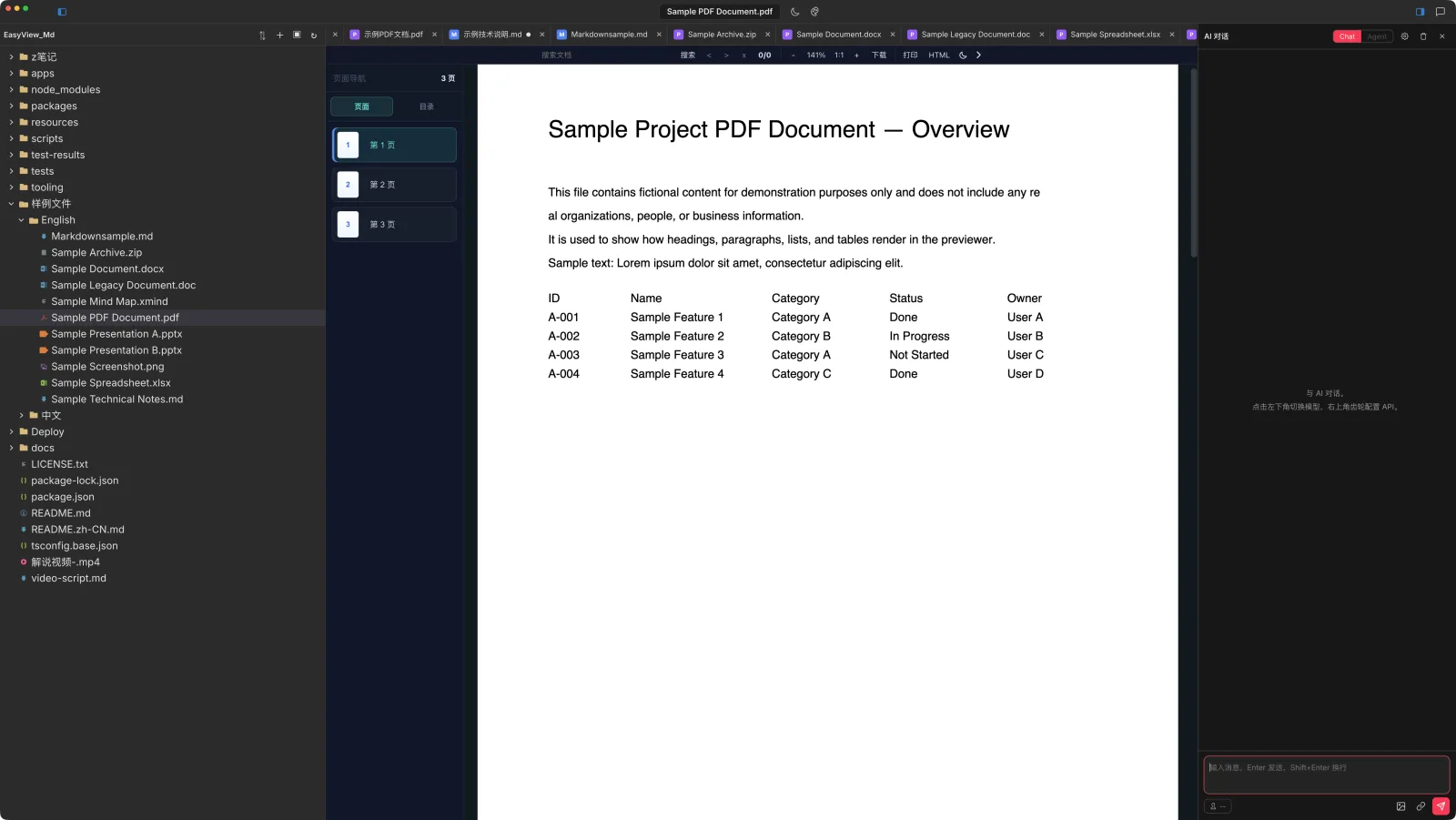
PowerPoint and PDF files can be previewed, and PowerPoint decks can be played as a slideshow. Images (including HEIC), SVG, XMind, CSV, and the contents of zip, 7z, rar and tar archives can be viewed too.
| File type | What you can do |
|---|---|
| Markdown | Edit visually or in source mode, then save as Markdown. |
| Word (.docx) | Edit and save the document, or convert it to Markdown. |
| Excel (.xlsx) | Edit and save the spreadsheet. |
| PowerPoint | Preview the slides and play a slideshow. |
| Preview the file, or convert it to Markdown. | |
| Images, SVG, XMind and CSV | View supported content in the workspace. |
| Archives | Browse their contents and preview supported entries. |
Other supported formats include HTML, EPUB, PSD, plain text and configuration files. Support varies by format, so use the file’s available controls to see which operations it offers.
3. AI chat beside your document
Open the AI panel next to the document. It has two modes:
- Chat: ask questions, discuss ideas, or paste a passage for feedback. The current document’s text is not automatically included in Chat messages.
- Agent: ask the AI to inspect and edit Markdown or text files in your workspace, including the current Markdown document, or create a new text file. Changes are applied to the document or file.
For example, paste a paragraph into Chat and ask for a clearer explanation, or use Agent to ask: “Rewrite the introduction of this Markdown document in plain English and keep the rest unchanged.”
When the AI or another external tool changes a document, the changed blocks are highlighted and you can jump between them.
You bring your own API key. DeepSeek is the default, and you can configure an OpenAI-compatible API base URL and model. Agent requires a provider and model that support the tool calls it uses. Keys are kept in the system’s encrypted storage. AI usage is billed according to your provider’s terms.
Web search is also available when you configure a separate Brave Search API key. Search queries are sent to that service, and the AI can use the results in its response.
Other features
- Export: HTML, PDF (light or dark) and DOCX. PDF export bundles CJK fonts.
- Import: convert Word and PDF files to Markdown, with images extracted to an assets folder beside the generated file. Word (.docx) conversion requires Pandoc; PDF conversion requires Poppler. Legacy Word (.doc) conversion also requires LibreOffice. PDFs without extractable text can be represented as page images in the resulting Markdown.
- Built-in terminal and Git: open a terminal, and stage, commit and sync files inside the app.
- Find and replace: with match case, whole word and regex.
- Code highlighting: 70+ languages.
- More Markdown elements: task lists, footnotes, callouts, front matter, draw.io diagrams.
- Themes: light and dark, with adjustable text accent colors.
Privacy
No account, no telemetry, no crash reporting. Your files are processed on your own computer. Content is sent to a third-party service only when you use AI chat, web search or online diagram rendering.
Download
| Platform | Get it |
|---|---|
| macOS | Download from the website |
| Windows | Download from the website |
| VS Code / Cursor | VS Code Marketplace |
Open source
EasyView_Md is open source under the MIT license: GitHub repository.
If something works well, feels awkward or is missing, please open an issue on GitHub and let me know.