When people first see EasyView, they often ask: “How is this different from Obsidian?” Both open a folder, render Markdown and draw Mermaid diagrams, so they look alike. But they solve different problems.
In short: Obsidian builds a knowledge base around Markdown notes. EasyView lets you read and edit all the documents in a project folder in one place. This article lays out the differences so you can choose for your own situation, or use both.
The short answer
| Your situation | Better fit |
|---|---|
| Building personal notes over time, with backlinks, a graph view and plugins | Obsidian |
| Opening an existing project folder with Markdown, Word, Excel, PPT and PDF mixed together | EasyView |
| Already working in VS Code / Cursor and want visual Markdown viewing and editing there | EasyView’s VS Code / Cursor extension |
| Just focusing on writing one Markdown article | Writing or preview tools such as Typora or Marked are also worth a look |
Difference 1: a “vault” or a project folder
Obsidian manages a folder as a vault. According to its official docs, it natively supports Markdown, Bases, Canvas, images, audio, video and PDF; other formats need community plugins. That suits a notes-first workflow.
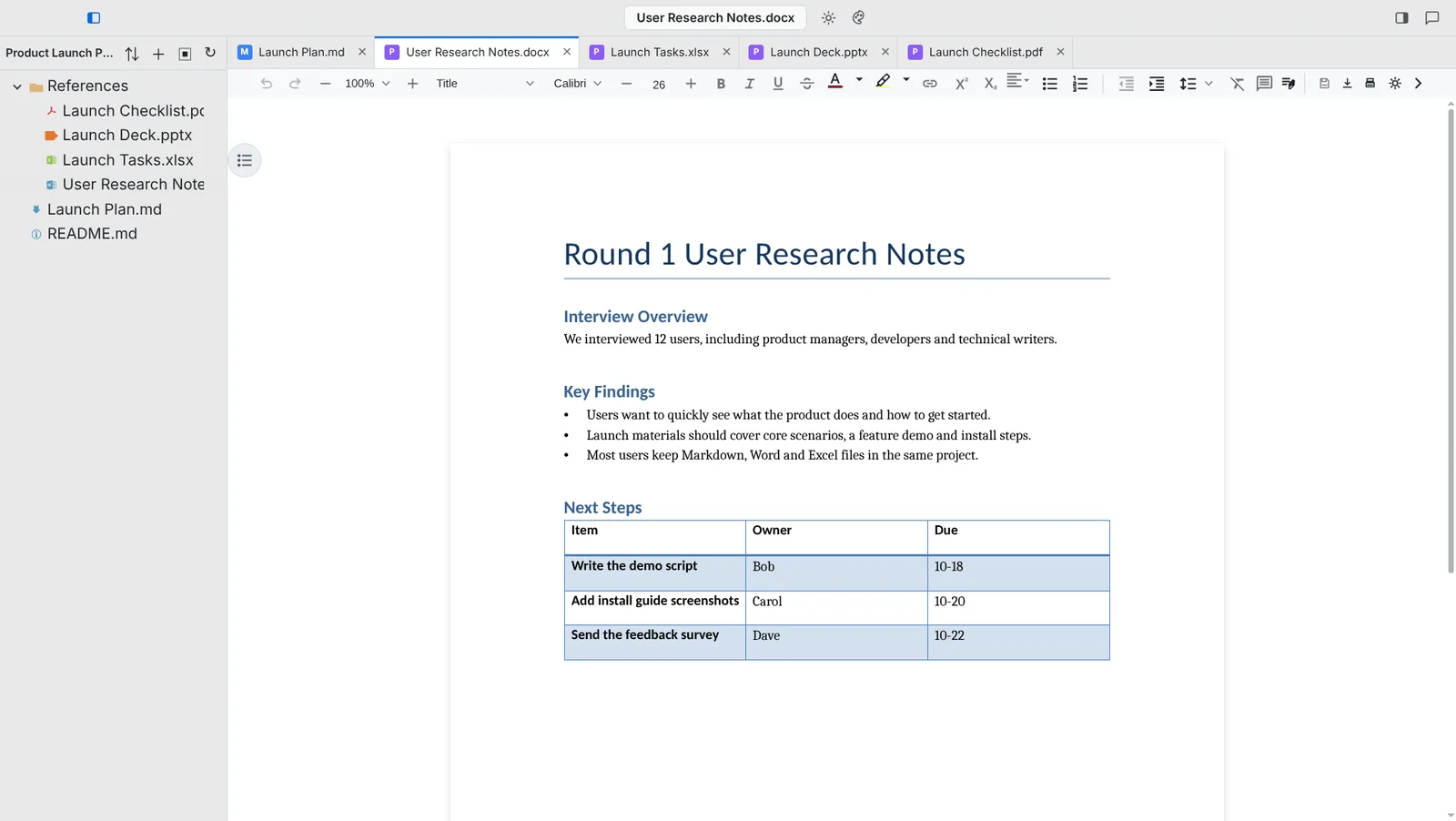
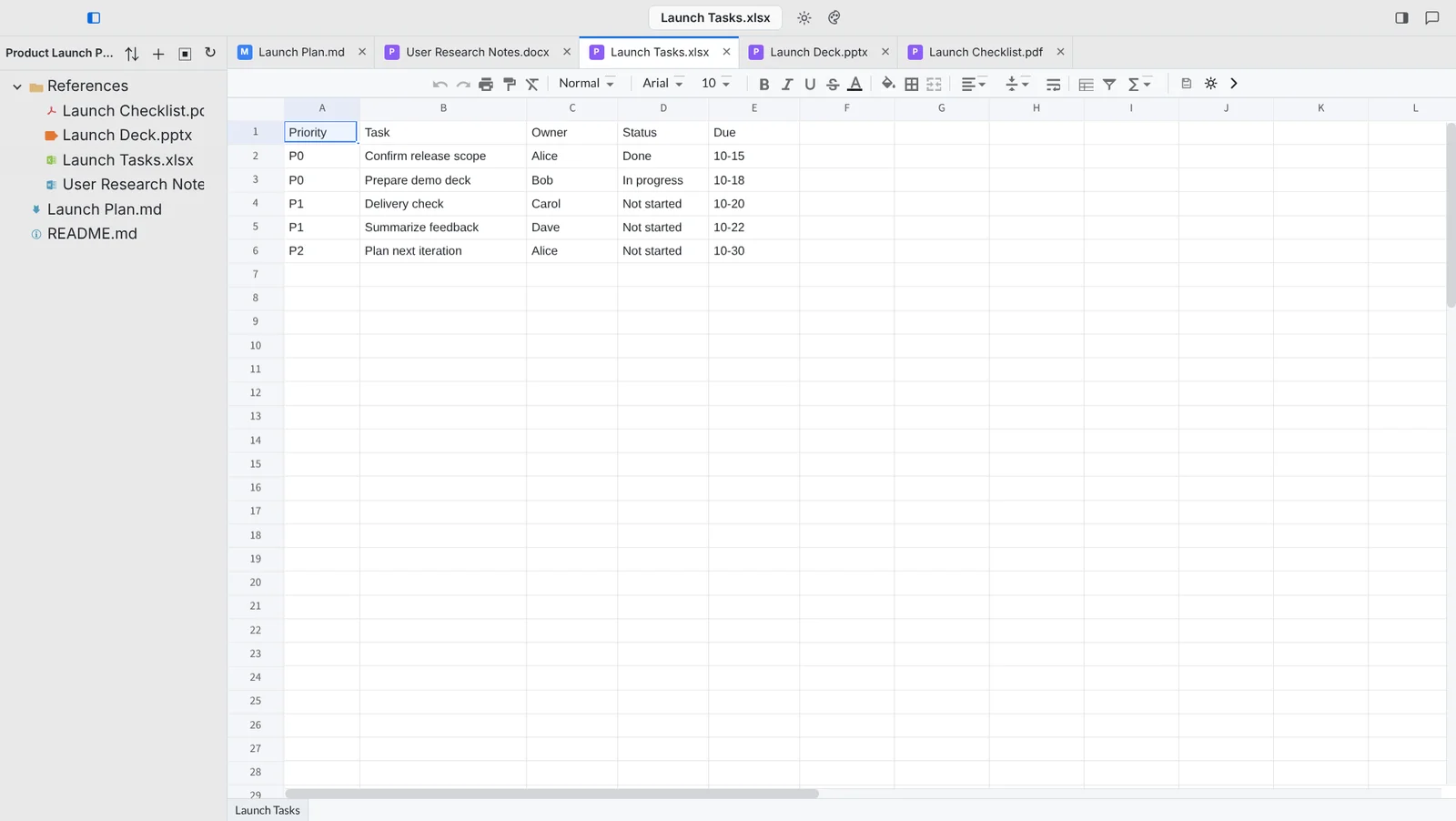
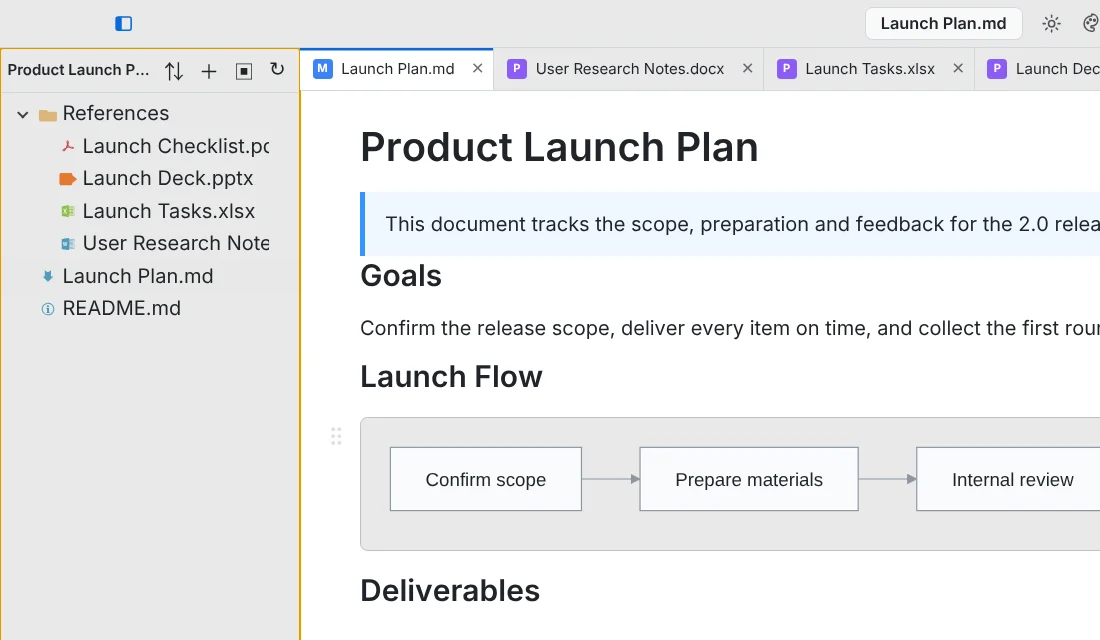
Project folders are rarely organized that way. One feature folder may hold a design note in .md, a requirements doc in .docx, a schedule in .xlsx, a review deck and a PDF contract. EasyView simply opens that folder: the file tree is on the left, and each file you click opens in a tab. Word and Excel files can be edited and saved, PPT and PDF can be previewed, and you don’t have to switch to Office or a PDF reader.
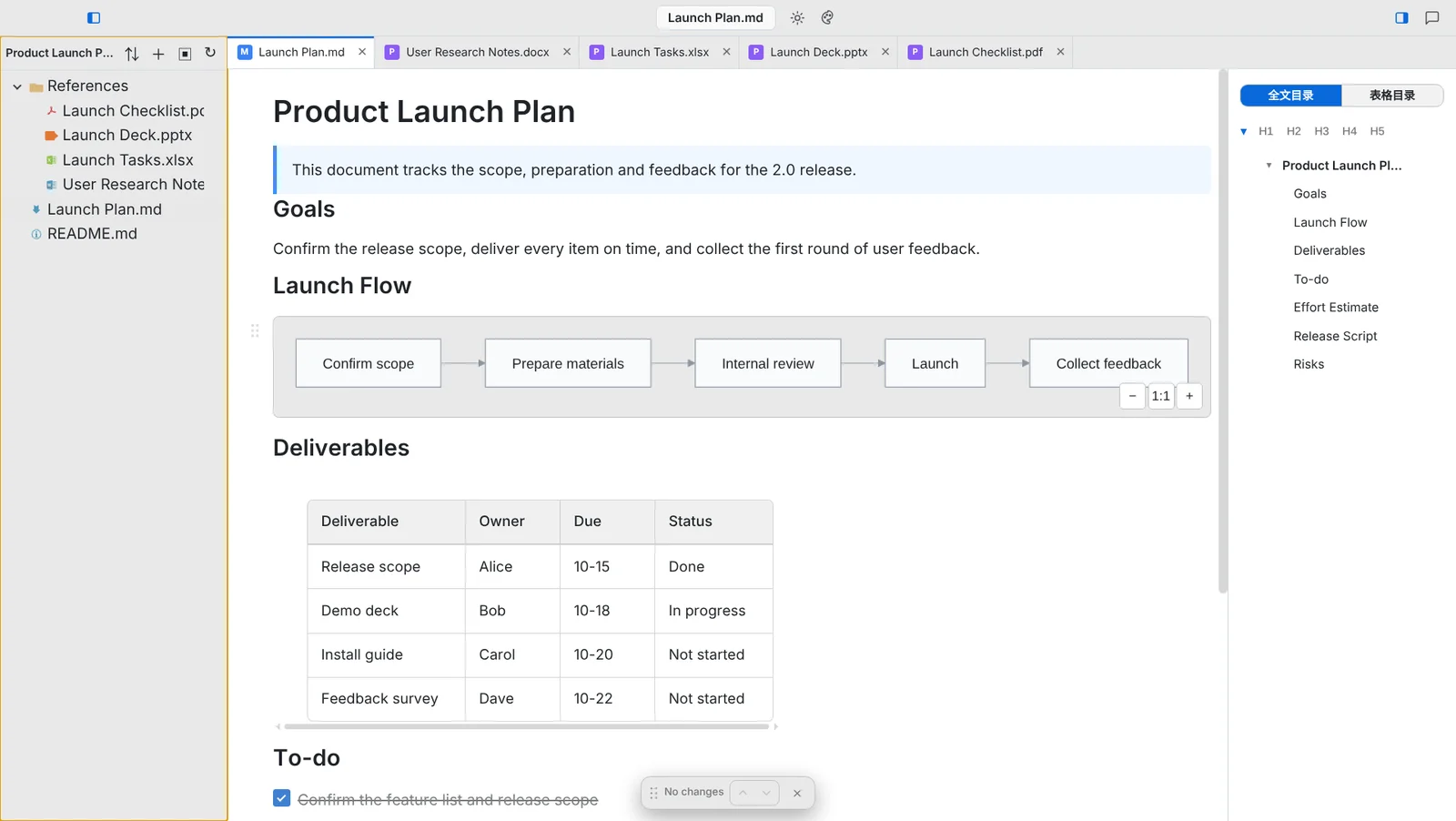
| File type | Obsidian (no plugins) | EasyView |
|---|---|---|
| Markdown | Edit, render | Visual editing, source editing |
| View, embed in notes | Preview, convert to Markdown | |
| Images, audio, video | Supported | Images (including HEIC) and SVG |
| Word (.docx) | Needs a community plugin | Edit and save, or convert to Markdown |
| Excel (.xlsx) | Needs a community plugin | Edit and save |
| PPT | Needs a community plugin | Preview, present |
| Archives, XMind, CSV | Needs a community plugin | Browse and preview supported content |
Difference 2: Markdown rendering and Mermaid
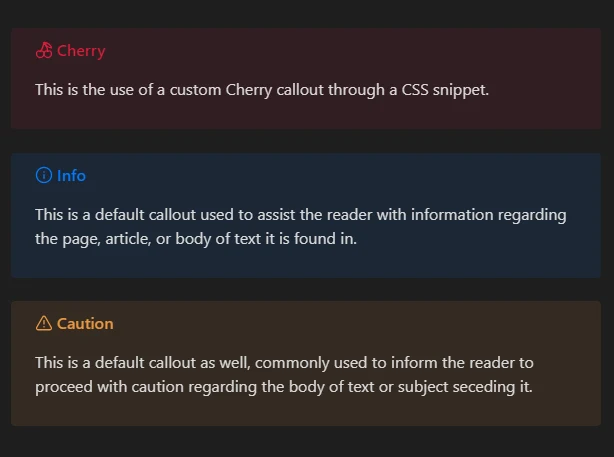
Both are strong here. Obsidian officially supports Mermaid diagrams and MathJax math, plus its distinctive callouts.

EasyView renders Mermaid locally, so diagrams show up as soon as you open the document, with no network needed. PlantUML, Graphviz, D2 and BPMN are supported too (these are rendered online), and math uses KaTeX. EasyView also edits visually by default: add or remove table rows and columns, merge cells, or type / on an empty line to insert a block, while the file stays plain Markdown.
Difference 3: outline navigation and tabs
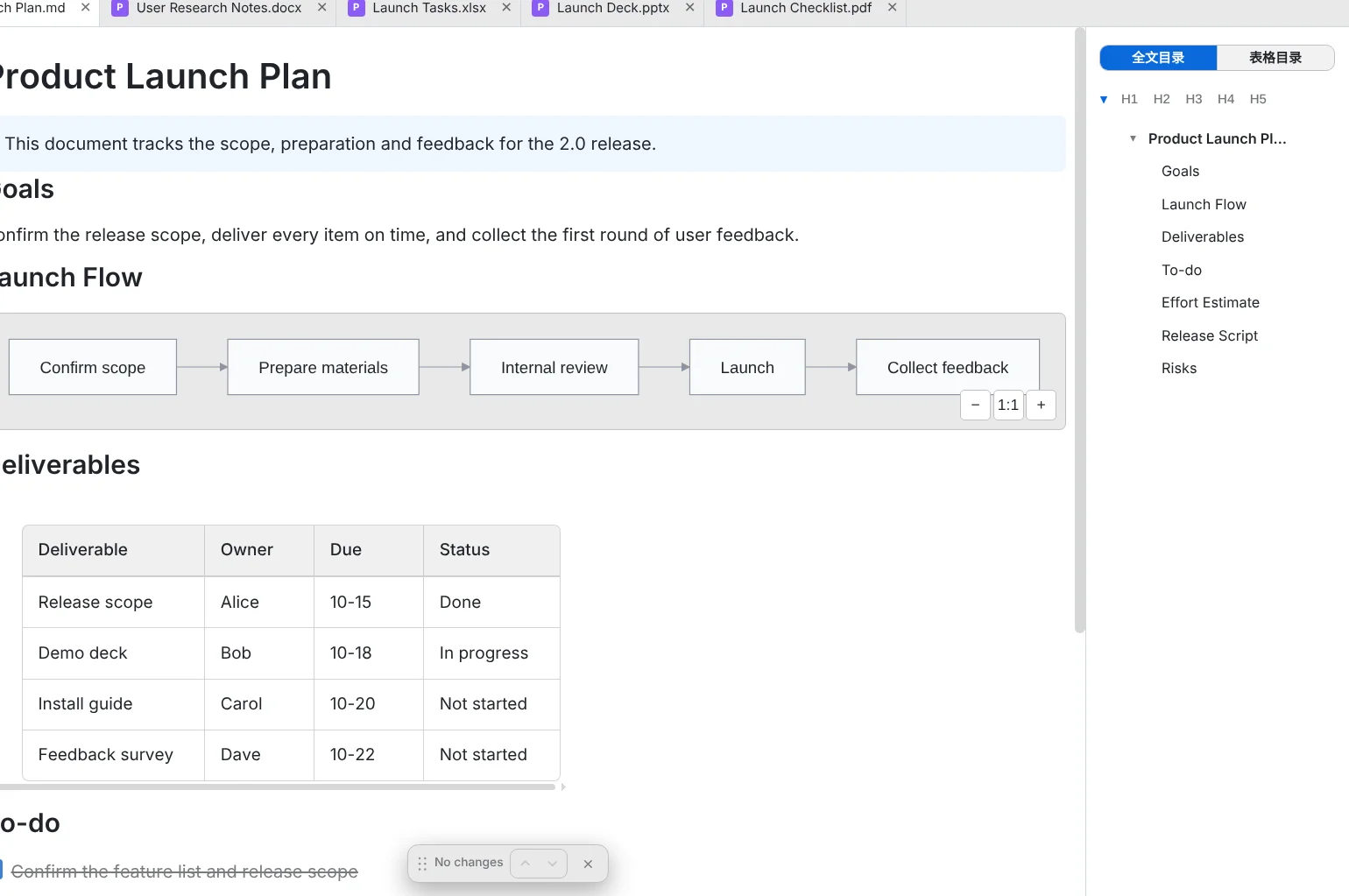
For long documents, an outline beats search. EasyView keeps the outline next to the document. You can fold it by heading level, click to jump, and drag a heading to move its whole section. In a design doc with dozens of sections, the outline is much faster than scrolling.
Obsidian also has an outline panel and tabs, plus something EasyView doesn’t have: the graph view, which shows how notes link to each other. If most of your value comes from links between notes, that is a clear Obsidian advantage.


EasyView’s tabs lean toward keeping different file types from one project open at once: a Markdown design doc in one tab, an Excel schedule in another, a PDF in a third. The desktop app restores your open files and layout the next time you launch it.
Difference 4: inside your editor
If your day happens in VS Code or Cursor, EasyView also comes as an extension. On a Markdown file, choose “Reopen Editor With… → EasyView_Md” to get the same visual editor without leaving your code repository.
Which to choose
- Building a long-term personal knowledge base where links, the graph and plugins matter: choose Obsidian.
- Working from an existing project folder full of mixed formats, and you just want to open, read and edit: choose EasyView.
- They don’t conflict. In the same folder, you can take notes in Obsidian and open the Word, Excel and PPT files with EasyView.
Download EasyView
| Platform | Where to get it |
|---|---|
| macOS / Windows | Official website |
| Windows | Microsoft Store |
| VS Code / Cursor | VS Code Marketplace |
For more features, see the EasyView_Md guide. If something feels smooth or awkward, let me know with an issue on GitHub.